Open Your Booking Link
Share the relevant appointment link so clients know who they are meeting and what the appointment is for.
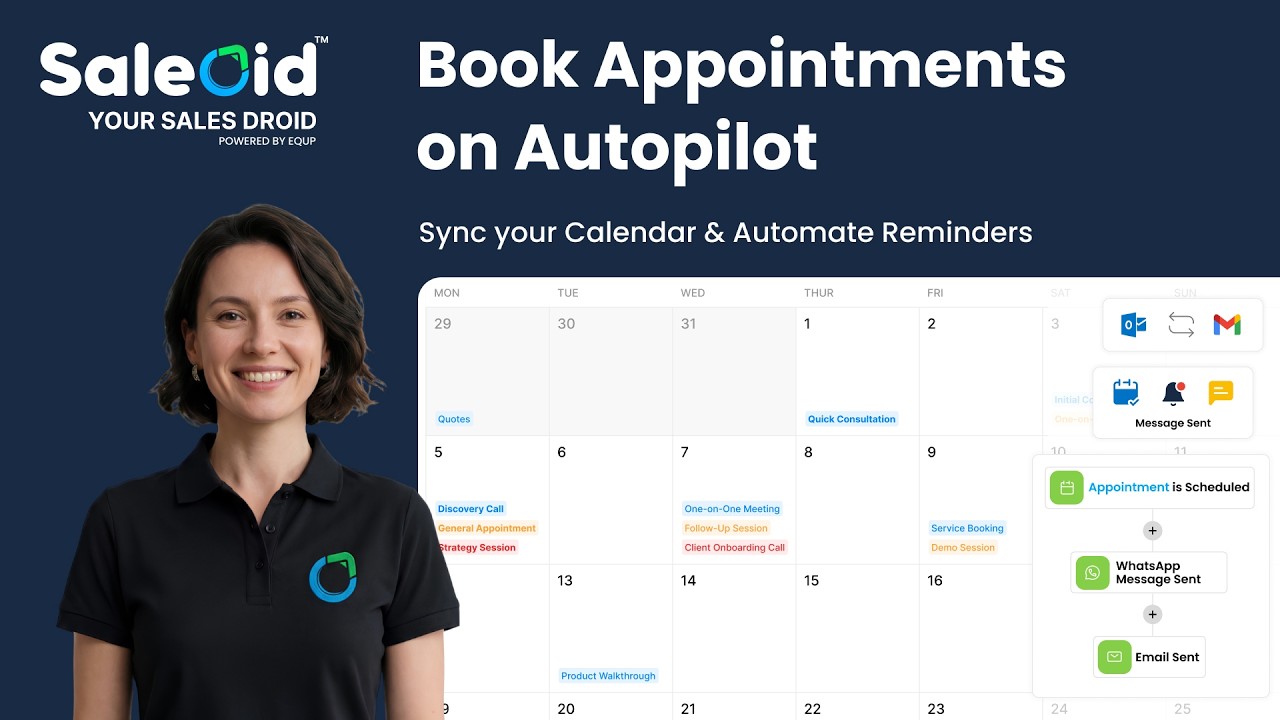
Give clients a straightforward way to book time with you. Manage availability, connect your calendar and keep appointment details alongside customer information in Saleoid CRM. From a freelancer’s introductory call to a startup’s product demo or an agency’s client meeting, make scheduling part of an organized working day.
Help clients find a suitable time without exchanging several emails about availability.
Share the relevant appointment link so clients know who they are meeting and what the appointment is for.
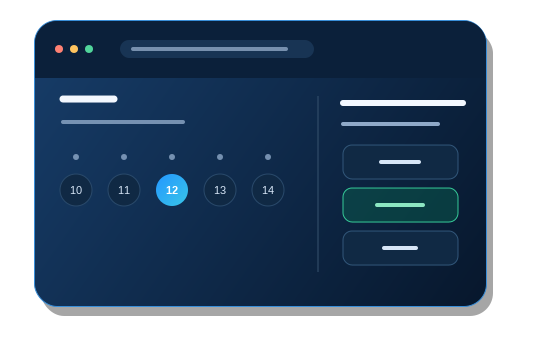
Clients review the available slots and select a time that suits them.
Collect the information needed to arrange the meeting and help your team prepare.
Make the confirmation clear, including the appointment time, location and any preparation instructions.
Build your schedule around the time you can realistically offer, not every empty space in your calendar.
Choose when clients can book appointments. Keep existing commitments and time off outside those hours.
A first introduction may need less time than a detailed project discussion. Choose an appointment length that matches its purpose.
Preparation and follow-up take time too. Review the buffer controls available for your setup before arranging back-to-back appointments.
Connect appointment scheduling with the calendar you already use. Saleoid describes Google Calendar and Outlook Calendar integration, helping bring booked meetings and calendar availability together.
 Google Calendar
 Outlook Calendar
Check which connected calendar receives appointments and which calendars are used to check for conflicts.
Confirm how existing events affect the slots clients can see. Include personal commitments and other meetings in your availability checks.
Create a test appointment, check its calendar destination and review what happens when it changes.
Verify your configuration before relying on it for a busy schedule.
Start your 15-day trial and get personal support from the Saleoid team, including a 1:1 founder call and a dedicated account manager.
Discuss your business workflow, lead sources, and setup priorities.
Get guided help choosing apps and setting up your first CRM workflow.
Plan your lead capture, follow-up tasks, and team handoff process.
Available for early trial users during the launch period.
Let clients arrange time with the person they need to meet. Personal booking links can support different responsibilities across a small team.
Working with clients in another location should not require guessing which time an invitation refers to. Saleoid describes time-zone handling for booking pages.
Encourage clients to check the displayed time zone, especially when travelling or booking from a different device.
Give clients useful information when they book and a timely prompt before the appointment.
A confirmation should explain what has been booked, when it takes place and how to attend.
Use supported reminder settings to bring the appointment back to the client’s attention. Keep the message short.
Agree who will review upcoming appointments and check any outstanding preparation.
Reminder channels depend on your apps and configuration. Messaging usage charges may apply.
Make it clear how clients should contact you when their plans change. Before sharing a booking link, establish:
Use the controls available in your setup and test the complete change process.
 A clear next step for every conversation
Prepare for the conversation with customer information close at hand. Saleoid describes recording appointments within the CRM, so your team can review meeting activity alongside the contact relationship.
Check the request and relevant information before joining the call.
Review available notes and earlier interactions so clients do not have to repeat information unnecessarily.
After the meeting, capture the agreed action and assign responsibility for following through.
Put the booking option where someone is ready to arrange a conversation.

Include the appropriate link in a relevant email, proposal or customer conversation.

Use a supported embedding or button option so visitors can find the next step on your site.

A focused consultation page can explain the offer before asking someone to book.
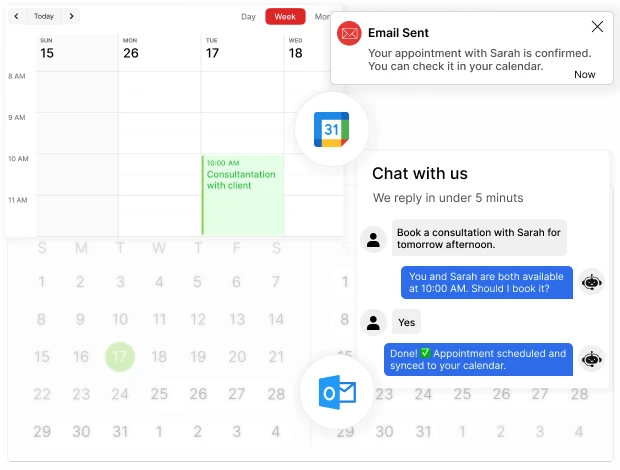
A freelance consultant wants to understand a prospect’s needs before recommending a service.
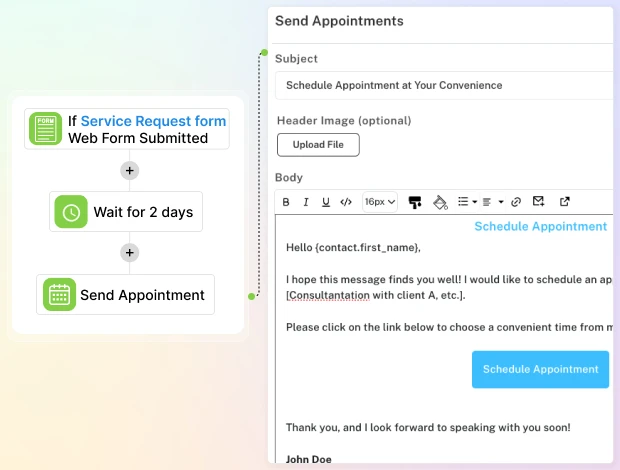
A startup receives a request for information about its product.
Choose the Appointments app with a Custom subscription or select a bundled plan.
The Custom base subscription starts at $5/month, billed every 2 years. The Appointments app is an additional charge; confirm its billing term when selecting your setup.
Saleoid brings personal booking links, calendar connections and appointment reminders together with your sales CRM. Your team can arrange meetings and review customer information in the same system, with reminder channels depending on your apps and configuration.
Yes, Saleoid supports Google Calendar and Outlook integration. Connect the appropriate calendar, check which events affect availability and test where new appointments appear before sharing your booking link.
Saleoid offers chatbot-assisted scheduling, helping website visitors move from an initial question toward an appointment. Chatbot availability and any additional charges depend on your selected apps and plan.
Yes, Saleoid supports appointment reminders, with email, SMS and WhatsApp options depending on your setup. Include the meeting time, location or joining link, and preparation instructions. Related apps and messaging usage charges may apply.
Yes, Saleoid provides personal booking links with individual working hours and availability. Each team member can offer suitable appointment times.
Yes, Saleoid provides configurable reminders through its automation features. Choose supported timing and channels to suit the appointment. Explore workflow automation software for connecting confirmations and reminders with your scheduling process.
The outcome depends on the connected calendar and supported synchronization behavior. Test rescheduling and cancellation separately rather than assuming every change behaves identically.
Yes, supported automation actions can send an invitation containing a booking link, such as after a relevant inquiry or form submission. The recipient then chooses an available time. An invitation does not confirm an appointment until booking is completed.
Saleoid offers automatic time-zone detection on booking pages so that clients can view availability in their local time.
Saleoid describes creating or updating the contact record and recording appointment activity in the customer timeline. Your team can review relevant information before a meeting and record the next step afterward. Explore CRM-connected appointment scheduling.
Yes, Saleoid offers iframe embeds, booking buttons and direct links. You can also place scheduling on a relevant campaign page using the landing page builder. Check required apps and test the published booking process.
Yes, Saleoid describes responsive booking pages that clients can use on phones and tablets. Test your published page to check text, time selection and form fields before sharing it with customers.
Give clients a clear way to choose a time, and give your team the context to make the conversation count.